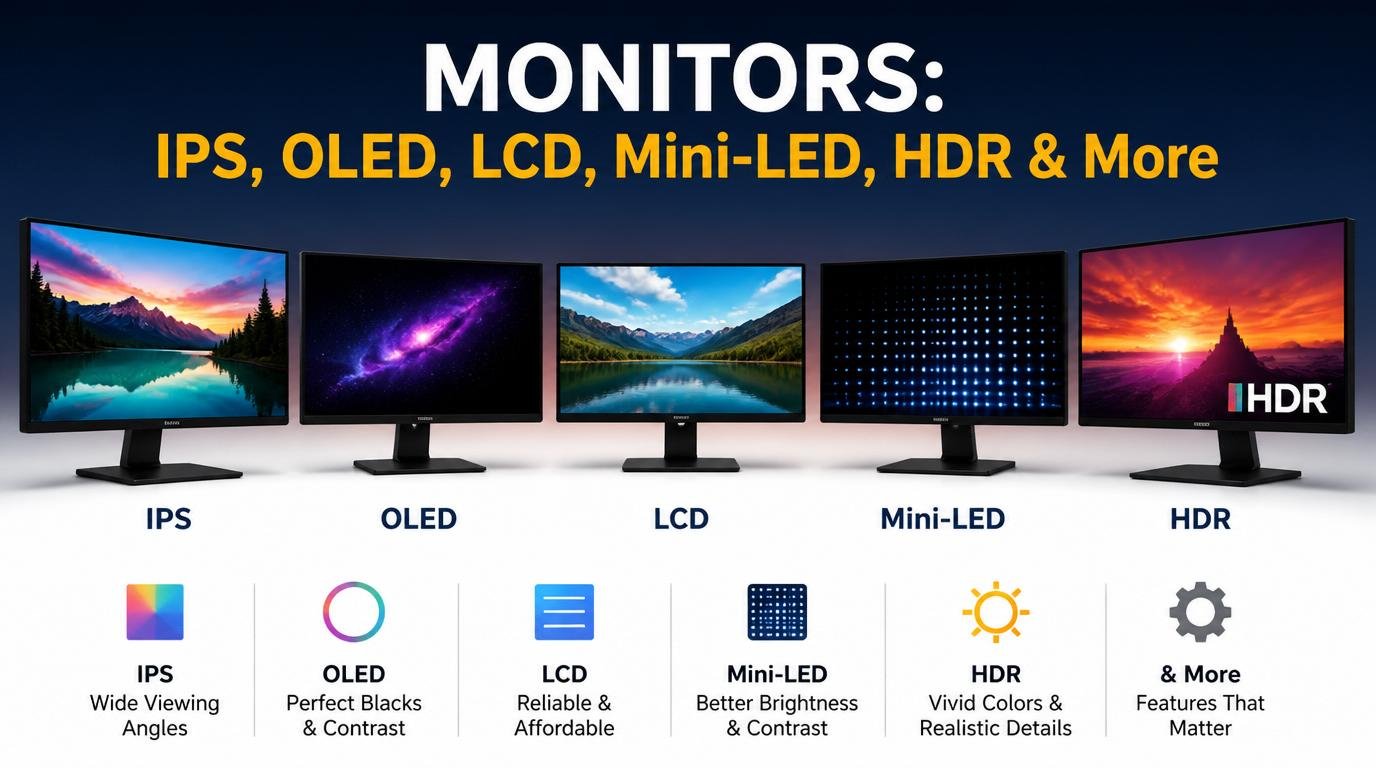
The Ultimate Guide to Monitors: Display Technologies, Screen Types, and the Science Behind Modern Displays
Monitors are one of the most important parts of any computer setup. Whether you are a gamer, video editor, programmer, designer, stock trader, office worker, or casual user, the monitor directly affects your experience, productivity, and even eye comfort.
Modern monitors are far more advanced than the bulky CRT displays of the past. Today’s displays use complex technologies involving liquid crystals, LEDs, OLED compounds, quantum dots, refresh synchronization, color calibration, HDR processing, and high-speed pixel response systems.
This detailed guide explains everything about monitors — from basic concepts to advanced display technologies.
Table of Contents
- What is a Monitor?
- History of Display Technology
- How Modern Displays Work
- Types of Monitor Panels
- LCD Technology Explained
- LED Backlighting Technology
- OLED Technology
- Mini-LED and MicroLED
- Quantum Dot Technology
- Screen Resolutions
- Aspect Ratios
- Refresh Rate Explained
- Response Time
- Adaptive Sync Technologies
- HDR Technology
- Color Gamut and Color Accuracy
- Brightness and Contrast Ratio
- Monitor Ports and Connectivity
- Curved vs Flat Monitors
- Touchscreen Monitors
- Gaming Monitors
- Professional Monitors
- Ultrawide Monitors
- Portable Monitors
- Eye Care Technologies
- Monitor Calibration
- Monitor Sizes and Pixel Density
- Power Consumption
- Common Monitor Problems
- Future of Monitor Technology
- How to Choose the Best Monitor
1. What is a Monitor?
A monitor is an electronic output device that displays visual information generated by a computer or other digital system.
It converts digital signals from the GPU (Graphics Processing Unit) into visible images using millions of tiny pixels.
Every image on a monitor is created using:
- Pixels
- Subpixels (Red, Green, Blue)
- Light generation or modulation
- Refresh cycles
Modern displays are highly sophisticated visual systems designed for:
- Entertainment
- Professional work
- Gaming
- Scientific applications
- Medical imaging
- Financial trading
- Content creation
2. History of Display Technology
CRT (Cathode Ray Tube)
CRT monitors were the first mainstream displays.
How CRT Worked
- Electron guns fired beams at phosphor-coated screens
- Magnetic coils controlled beam direction
- Phosphors glowed when struck
Advantages
- Excellent motion clarity
- Deep blacks
- No input lag
Disadvantages
- Very bulky
- High power consumption
- Heat generation
- Screen flicker
CRT technology dominated until LCDs replaced it.
3. How Modern Displays Work
Modern monitors primarily use LCD or OLED technology.
Basic Principle
A monitor works using:
- Light source
- Pixel matrix
- Color filters
- Electrical control systems
Pixel Structure
Each pixel contains:
- Red subpixel
- Green subpixel
- Blue subpixel
Different brightness combinations create millions of colors.
4. Types of Monitor Panels
The panel type is the most important factor in image quality.
There are three main LCD panel technologies:
TN (Twisted Nematic)
How It Works
Liquid crystals twist when voltage changes.
Advantages
- Very fast response time
- High refresh rates
- Cheap manufacturing
Disadvantages
- Poor viewing angles
- Weak color reproduction
- Lower contrast
Best For
- Competitive gaming
- Budget gaming monitors
IPS (In-Plane Switching)
How It Works
Crystals rotate parallel to the panel.
Advantages
- Excellent color accuracy
- Wide viewing angles
- Better image consistency
Disadvantages
- Lower contrast than VA
- IPS glow issue
- Slightly slower response
Best For
- Designers
- Content creators
- Programmers
- General users
VA (Vertical Alignment)
How It Works
Crystals align vertically when inactive.
Advantages
- High contrast ratio
- Deep blacks
- Good movie experience
Disadvantages
- Slower pixel transitions
- Ghosting in fast motion
Best For
- Media consumption
- Dark-room usage
- Casual gaming
5. LCD Technology Explained
LCD stands for Liquid Crystal Display.
LCD panels do not produce light themselves.
Instead:
- A backlight shines through liquid crystals
- Crystals control how much light passes
- Color filters create RGB output
LCD Layers
A modern LCD includes:
- Polarizer
- Glass substrate
- Thin-film transistors (TFT)
- Liquid crystal layer
- Color filters
- Backlight system
6. LED Backlighting Technology
People often confuse LED monitors with LCD monitors.
Most “LED monitors” are actually LCD monitors using LED backlights.
Types of LED Backlights
Edge-Lit LED
LEDs placed around screen edges.
Pros
- Thin design
- Lower cost
Cons
- Uneven brightness
- Weak local dimming
Full Array Local Dimming (FALD)
LEDs placed behind entire screen.
Pros
- Better HDR
- Improved contrast
Cons
- Expensive
- Blooming issues
7. OLED Technology
OLED stands for Organic Light Emitting Diode.
Unlike LCDs:
- Each pixel emits its own light
- No backlight required
Advantages
Perfect Blacks
Pixels can turn completely off.
Infinite Contrast
True black + bright highlights.
Fast Response Time
Almost instant pixel transitions.
Better HDR
Exceptional brightness control.
Disadvantages
Burn-In Risk
Static images can permanently mark pixels.
Lower Lifespan
Organic materials degrade over time.
Higher Cost
Premium technology.
8. Mini-LED and MicroLED
Mini-LED
Mini-LED uses thousands of tiny LEDs for backlighting.
Benefits
- Better local dimming
- Improved HDR
- Higher brightness
Mini-LED is still LCD technology.
MicroLED
MicroLED is the future of displays.
Features
- Self-emissive pixels
- No burn-in
- Extremely bright
- Excellent efficiency
Challenges
- Very expensive
- Difficult manufacturing
9. Quantum Dot Technology
Quantum dots are microscopic semiconductor particles.
They improve:
- Brightness
- Color purity
- Efficiency
QLED
QLED monitors use:
- LCD panel
- LED backlight
- Quantum dot enhancement layer
Benefits
- Wider color gamut
- Brighter HDR
- Better color volume
10. Screen Resolutions
Resolution determines pixel count.
Common Resolutions
| Resolution | Pixels | Name |
|---|---|---|
| 1280×720 | HD | 720p |
| 1920×1080 | Full HD | 1080p |
| 2560×1440 | QHD | 1440p |
| 3840×2160 | UHD | 4K |
| 7680×4320 | 8K | 8K UHD |
Higher Resolution Benefits
- Sharper text
- Better detail
- Improved workspace
Downsides
- Requires stronger GPU
- Higher power usage
- Scaling issues
11. Aspect Ratios
Aspect ratio describes screen width relative to height.
Common Ratios
16:9
Standard format.
21:9
Ultrawide format.
32:9
Super ultrawide.
16:10
Popular among professionals.
12. Refresh Rate Explained
Refresh rate measures how many times per second the image updates.
Common Refresh Rates
| Refresh Rate | Usage |
|---|---|
| 60Hz | Standard |
| 75Hz | Casual smoothness |
| 120Hz | Premium experience |
| 144Hz | Gaming |
| 240Hz | Esports |
| 360Hz+ | Competitive gaming |
Higher Refresh Rate Benefits
- Smoother motion
- Lower perceived blur
- Reduced input lag
13. Response Time
Response time measures pixel transition speed.
Usually measured in:
- Gray-to-Gray (GtG)
Problems from Slow Response
- Ghosting
- Motion blur
- Smearing
14. Adaptive Sync Technologies
Screen tearing occurs when GPU and monitor refresh rates mismatch.
AMD FreeSync
Synchronizes refresh rate dynamically.
NVIDIA G-SYNC
Premium adaptive sync technology.
Benefits
- Smooth gameplay
- Reduced tearing
- Lower stuttering
15. HDR Technology
HDR = High Dynamic Range.
HDR improves:
- Brightness
- Contrast
- Color depth
HDR Standards
| Standard | Quality |
|---|---|
| HDR400 | Basic |
| HDR600 | Better |
| HDR1000 | Premium |
| Dolby Vision | Advanced HDR |
Real HDR Requirements
True HDR needs:
- High brightness
- Local dimming
- Wide color gamut
- High contrast
16. Color Gamut and Color Accuracy
Color gamut defines color range coverage.
Common Standards
| Standard | Usage |
|---|---|
| sRGB | Web content |
| Adobe RGB | Photography |
| DCI-P3 | Cinema |
| Rec.2020 | Future UHD |
Color Accuracy
Measured using:
- Delta E values
Lower Delta E = Better Accuracy
17. Brightness and Contrast Ratio
Brightness
Measured in:
- Nits (cd/m²)
Typical Levels
- 250 nits = basic office use
- 400+ nits = HDR capable
- 1000+ nits = premium HDR
Contrast Ratio
Difference between brightest white and darkest black.
Higher Contrast Means
- Better depth
- Improved dark scenes
18. Monitor Ports and Connectivity
HDMI
Most common connection.
HDMI Versions
- HDMI 2.0
- HDMI 2.1
DisplayPort
Preferred for gaming.
Benefits
- Higher refresh rates
- Better bandwidth
USB-C
Modern multifunction port.
Supports
- Video
- Data
- Charging
Thunderbolt
High-speed premium connectivity.
19. Curved vs Flat Monitors
Curved Monitors
Benefits
- Better immersion
- Reduced edge distortion
- Improved ultrawide experience
Downsides
- Reflection issues
- Expensive
Flat Monitors
Benefits
- Better for professional work
- Easier wall mounting
- More accurate geometry
20. Touchscreen Monitors
Touch monitors use:
- Capacitive sensing
- Resistive sensing
- Infrared systems
Used in:
- POS systems
- Education
- Industrial environments
21. Gaming Monitors
Gaming monitors prioritize:
- High refresh rates
- Fast response times
- Adaptive sync
- Low latency
Important Gaming Specs
- 144Hz or higher
- 1ms response time
- FreeSync/G-SYNC
- Good motion handling
22. Professional Monitors
Professional displays focus on:
- Color accuracy
- Calibration
- Uniform brightness
Used by:
- Video editors
- Photographers
- Designers
- VFX artists
23. Ultrawide Monitors
Ultrawide monitors provide:
- Wider workspace
- Better multitasking
- Immersive gaming
Popular formats:
- 21:9
- 32:9
24. Portable Monitors
Portable displays use:
- USB-C power
- Lightweight panels
Useful for:
- Travel
- Dual-screen laptops
- Presentations
25. Eye Care Technologies
Modern monitors include:
- Blue light filters
- Flicker-free technology
- Anti-glare coatings
These reduce:
- Eye strain
- Fatigue
- Headaches
26. Monitor Calibration
Calibration ensures accurate colors.
Calibration Tools
- Colorimeters
- Spectrophotometers
Calibration Adjustments
- Gamma
- White balance
- Brightness
- Color temperature
27. Monitor Sizes and Pixel Density
Pixel density measured in:
- PPI (Pixels Per Inch)
Common Sizes
| Size | Best Use |
|---|---|
| 24-inch | Office/gaming |
| 27-inch | Balanced usage |
| 32-inch | 4K productivity |
| 49-inch | Super ultrawide |
28. Power Consumption
Power usage depends on:
- Brightness
- Panel type
- Resolution
- Refresh rate
OLED often uses less power in dark scenes.
Mini-LED can consume more power at high brightness.
29. Common Monitor Problems
Dead Pixels
Pixels stuck off/on.
Backlight Bleeding
Light leakage around edges.
IPS Glow
Visible glow from angles.
Burn-In
Common with OLED.
Ghosting
Motion trails from slow response.
30. Future of Monitor Technology
Future innovations include:
- MicroLED
- Transparent displays
- Flexible screens
- Holographic displays
- AI-based image enhancement
- 1000Hz gaming monitors
31. How to Choose the Best Monitor
For Gaming
Choose:
- 144Hz+
- IPS or OLED
- Adaptive sync
- Low response time
For Productivity
Choose:
- 27-inch or larger
- IPS panel
- High resolution
For Content Creation
Choose:
- Color-accurate IPS/OLED
- Wide gamut
- Hardware calibration support
Final Thoughts
Monitors are far more than simple screens. They are advanced visual systems built using complex optical engineering, semiconductor technology, high-speed electronics, and precision color science.
Understanding:
- Panel technologies
- Refresh rates
- HDR systems
- Color science
- Resolution scaling
- Backlighting methods
helps users choose the right monitor for their specific needs.
As technology evolves, displays will continue becoming:
- Brighter
- Faster
- More color accurate
- More energy efficient
- More immersive
The future of monitor technology is heading toward self-emissive displays like OLED and MicroLED, ultra-high refresh rates, AI-enhanced image processing, and increasingly realistic visual experiences.